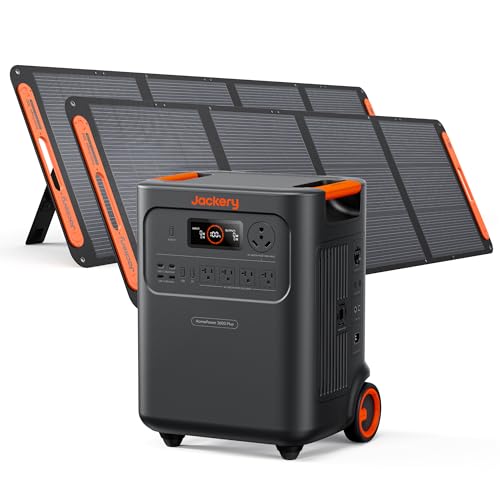
Before contacting support, run through this portable power station troubleshooting sequence:
- Power cycle: Full shutdown (hold 3 sec), wait 30 sec, power on.
- Check physical damage: swelling, bent ports, burnt smell.
- Verify environmental conditions: temperature 32-104°F, clean vents.
- Test inputs independently: AC charging alone, solar alone, load without charging.
- Check app and firmware: update to latest, clear cache, re-pair.
- Review manual for model-specific BMS error codes and reset procedures.
- Document the issue: video of the failure, error codes, ambient temperature.
- Contact support with this information if steps 1-7 don’t resolve the issue.
Summary: Portable Power Station Troubleshooting Checklist
Before contacting support, run through this portable power station troubleshooting sequence:
- Power cycle: Full shutdown (hold 3 sec), wait 30 sec, power on.
- Check physical damage: swelling, bent ports, burnt smell.
- Verify environmental conditions: temperature 32-104°F, clean vents.
- Test inputs independently: AC charging alone, solar alone, load without charging.
- Check app and firmware: update to latest, clear cache, re-pair.
- Review manual for model-specific BMS error codes and reset procedures.
- Document the issue: video of the failure, error codes, ambient temperature.
- Contact support with this information if steps 1-7 don’t resolve the issue.
[faq-schema]
Summary: Portable Power Station Troubleshooting Checklist
Before contacting support, run through this portable power station troubleshooting sequence:
- Power cycle: Full shutdown (hold 3 sec), wait 30 sec, power on.
- Check physical damage: swelling, bent ports, burnt smell.
- Verify environmental conditions: temperature 32-104°F, clean vents.
- Test inputs independently: AC charging alone, solar alone, load without charging.
- Check app and firmware: update to latest, clear cache, re-pair.
- Review manual for model-specific BMS error codes and reset procedures.
- Document the issue: video of the failure, error codes, ambient temperature.
- Contact support with this information if steps 1-7 don’t resolve the issue.
[faq-schema]
Summary: Portable Power Station Troubleshooting Checklist
Before contacting support, run through this portable power station troubleshooting sequence:
- Power cycle: Full shutdown (hold 3 sec), wait 30 sec, power on.
- Check physical damage: swelling, bent ports, burnt smell.
- Verify environmental conditions: temperature 32-104°F, clean vents.
- Test inputs independently: AC charging alone, solar alone, load without charging.
- Check app and firmware: update to latest, clear cache, re-pair.
- Review manual for model-specific BMS error codes and reset procedures.
- Document the issue: video of the failure, error codes, ambient temperature.
- Contact support with this information if steps 1-7 don’t resolve the issue.
[faq-schema]
Summary: Portable Power Station Troubleshooting Checklist
Before contacting support, run through this portable power station troubleshooting sequence:
- Power cycle: Full shutdown (hold 3 sec), wait 30 sec, power on.
- Check physical damage: swelling, bent ports, burnt smell.
- Verify environmental conditions: temperature 32-104°F, clean vents.
- Test inputs independently: AC charging alone, solar alone, load without charging.
- Check app and firmware: update to latest, clear cache, re-pair.
- Review manual for model-specific BMS error codes and reset procedures.
- Document the issue: video of the failure, error codes, ambient temperature.
- Contact support with this information if steps 1-7 don’t resolve the issue.
[faq-schema]
Summary: Portable Power Station Troubleshooting Checklist
Before contacting support, run through this portable power station troubleshooting sequence:
- Power cycle: Full shutdown (hold 3 sec), wait 30 sec, power on.
- Check physical damage: swelling, bent ports, burnt smell.
- Verify environmental conditions: temperature 32-104°F, clean vents.
- Test inputs independently: AC charging alone, solar alone, load without charging.
- Check app and firmware: update to latest, clear cache, re-pair.
- Review manual for model-specific BMS error codes and reset procedures.
- Document the issue: video of the failure, error codes, ambient temperature.
- Contact support with this information if steps 1-7 don’t resolve the issue.
- Monthly charge cycle: Full discharge to 0%, then full charge to 100%. This keeps BMS calibration accurate and cells balanced.
- Quarterly vent cleaning: Use compressed air to clear dust from intake and exhaust vents. Blockages cause thermal throttling.
- Firmware updates: Check the app monthly for updates. These often improve BMS stability and add bug fixes.
- Storage temperature: Store in cool, dry conditions (50-75°F) at 50% charge state. Not in cars or unheated garages.
- Cable inspection: Check solar and charging cables monthly for cracks or bent connectors. Replace damaged cords before field use.
- Connector care: MC4 and Anderson connectors degrade in outdoor humidity. Apply dielectric grease annually to female connectors.


[faq-schema]
Summary: Portable Power Station Troubleshooting Checklist
Before contacting support, run through this portable power station troubleshooting sequence:
- Power cycle: Full shutdown (hold 3 sec), wait 30 sec, power on.
- Check physical damage: swelling, bent ports, burnt smell.
- Verify environmental conditions: temperature 32-104°F, clean vents.
- Test inputs independently: AC charging alone, solar alone, load without charging.
- Check app and firmware: update to latest, clear cache, re-pair.
- Review manual for model-specific BMS error codes and reset procedures.
- Document the issue: video of the failure, error codes, ambient temperature.
- Contact support with this information if steps 1-7 don’t resolve the issue.
Most portable power station troubleshooting issues can be prevented with simple maintenance habits.
- Monthly charge cycle: Full discharge to 0%, then full charge to 100%. This keeps BMS calibration accurate and cells balanced.
- Quarterly vent cleaning: Use compressed air to clear dust from intake and exhaust vents. Blockages cause thermal throttling.
- Firmware updates: Check the app monthly for updates. These often improve BMS stability and add bug fixes.
- Storage temperature: Store in cool, dry conditions (50-75°F) at 50% charge state. Not in cars or unheated garages.
- Cable inspection: Check solar and charging cables monthly for cracks or bent connectors. Replace damaged cords before field use.
- Connector care: MC4 and Anderson connectors degrade in outdoor humidity. Apply dielectric grease annually to female connectors.
[faq-schema]
Summary: Portable Power Station Troubleshooting Checklist
Before contacting support, run through this portable power station troubleshooting sequence:
- Power cycle: Full shutdown (hold 3 sec), wait 30 sec, power on.
- Check physical damage: swelling, bent ports, burnt smell.
- Verify environmental conditions: temperature 32-104°F, clean vents.
- Test inputs independently: AC charging alone, solar alone, load without charging.
- Check app and firmware: update to latest, clear cache, re-pair.
- Review manual for model-specific BMS error codes and reset procedures.
- Document the issue: video of the failure, error codes, ambient temperature.
- Contact support with this information if steps 1-7 don’t resolve the issue.
Preventative Maintenance for Portable Power Stations
Most portable power station troubleshooting issues can be prevented with simple maintenance habits.
- Monthly charge cycle: Full discharge to 0%, then full charge to 100%. This keeps BMS calibration accurate and cells balanced.
- Quarterly vent cleaning: Use compressed air to clear dust from intake and exhaust vents. Blockages cause thermal throttling.
- Firmware updates: Check the app monthly for updates. These often improve BMS stability and add bug fixes.
- Storage temperature: Store in cool, dry conditions (50-75°F) at 50% charge state. Not in cars or unheated garages.
- Cable inspection: Check solar and charging cables monthly for cracks or bent connectors. Replace damaged cords before field use.
- Connector care: MC4 and Anderson connectors degrade in outdoor humidity. Apply dielectric grease annually to female connectors.
[faq-schema]
Summary: Portable Power Station Troubleshooting Checklist
Before contacting support, run through this portable power station troubleshooting sequence:
- Power cycle: Full shutdown (hold 3 sec), wait 30 sec, power on.
- Check physical damage: swelling, bent ports, burnt smell.
- Verify environmental conditions: temperature 32-104°F, clean vents.
- Test inputs independently: AC charging alone, solar alone, load without charging.
- Check app and firmware: update to latest, clear cache, re-pair.
- Review manual for model-specific BMS error codes and reset procedures.
- Document the issue: video of the failure, error codes, ambient temperature.
- Contact support with this information if steps 1-7 don’t resolve the issue.
Preventative Maintenance for Portable Power Stations
Most portable power station troubleshooting issues can be prevented with simple maintenance habits.
- Monthly charge cycle: Full discharge to 0%, then full charge to 100%. This keeps BMS calibration accurate and cells balanced.
- Quarterly vent cleaning: Use compressed air to clear dust from intake and exhaust vents. Blockages cause thermal throttling.
- Firmware updates: Check the app monthly for updates. These often improve BMS stability and add bug fixes.
- Storage temperature: Store in cool, dry conditions (50-75°F) at 50% charge state. Not in cars or unheated garages.
- Cable inspection: Check solar and charging cables monthly for cracks or bent connectors. Replace damaged cords before field use.
- Connector care: MC4 and Anderson connectors degrade in outdoor humidity. Apply dielectric grease annually to female connectors.
[faq-schema]
Summary: Portable Power Station Troubleshooting Checklist
Before contacting support, run through this portable power station troubleshooting sequence:
- Power cycle: Full shutdown (hold 3 sec), wait 30 sec, power on.
- Check physical damage: swelling, bent ports, burnt smell.
- Verify environmental conditions: temperature 32-104°F, clean vents.
- Test inputs independently: AC charging alone, solar alone, load without charging.
- Check app and firmware: update to latest, clear cache, re-pair.
- Review manual for model-specific BMS error codes and reset procedures.
- Document the issue: video of the failure, error codes, ambient temperature.
- Contact support with this information if steps 1-7 don’t resolve the issue.
When to Seek Warranty Service
- Swollen casing: Risk of thermal runaway. Do not use. Ship for replacement.
- Burnt smell from vents: Potential internal fire hazard. Stop use immediately.
- AC breaker trips instantly on reconnect: Indicates inverter circuit board failure.
- BMS error codes persist after 3 power cycles: Usually a sensor or cell fault requiring replacement.
- Output cuts out randomly under normal loads: Possible inverter MOSFET failure or BMS communication error.
Preventative Maintenance for Portable Power Stations
Most portable power station troubleshooting issues can be prevented with simple maintenance habits.
- Monthly charge cycle: Full discharge to 0%, then full charge to 100%. This keeps BMS calibration accurate and cells balanced.
- Quarterly vent cleaning: Use compressed air to clear dust from intake and exhaust vents. Blockages cause thermal throttling.
- Firmware updates: Check the app monthly for updates. These often improve BMS stability and add bug fixes.
- Storage temperature: Store in cool, dry conditions (50-75°F) at 50% charge state. Not in cars or unheated garages.
- Cable inspection: Check solar and charging cables monthly for cracks or bent connectors. Replace damaged cords before field use.
- Connector care: MC4 and Anderson connectors degrade in outdoor humidity. Apply dielectric grease annually to female connectors.
[faq-schema]
Summary: Portable Power Station Troubleshooting Checklist
Before contacting support, run through this portable power station troubleshooting sequence:
- Power cycle: Full shutdown (hold 3 sec), wait 30 sec, power on.
- Check physical damage: swelling, bent ports, burnt smell.
- Verify environmental conditions: temperature 32-104°F, clean vents.
- Test inputs independently: AC charging alone, solar alone, load without charging.
- Check app and firmware: update to latest, clear cache, re-pair.
- Review manual for model-specific BMS error codes and reset procedures.
- Document the issue: video of the failure, error codes, ambient temperature.
- Contact support with this information if steps 1-7 don’t resolve the issue.
App Won’t Connect: Bluetooth and Wi-Fi Troubleshooting
Reset Bluetooth Module
- Turn off phone Bluetooth, wait 10 seconds, turn back on.
- Power cycle the power station (full shutdown via 3-second hold, wait 30 seconds, power on).
- Forget the device in phone Bluetooth settings, then re-pair.
BMS Error Codes: Battery Management System Warnings
Common BMS Error Codes and Solutions
| Code Pattern | Typical Meaning | Action |
|---|---|---|
| Over-voltage (OV) | Cell voltage exceeded 3.65V (LiFePO4) | Stop charging. Let rest 1 hour. Retry. |
| Under-voltage (UV) | Cell voltage below 2.5V | Charge via AC immediately. May need 24h trickle. |
| Over-temperature (OT) | Cell temp exceeds 113°F (45°C) during charge | Move to cool location. Wait 2 hours before charging. |
| Under-temperature (UT) | Cell temp below 32°F (0°C) | Bring indoors to room temperature. Wait 1 hour. |
| Over-current (OC) | Discharge current exceeds limit | Reduce load immediately. Check for short circuit. |
| Cell Balance Error (CB) | Cell voltage variance exceeds 0.2V | Full charge/discharge cycle. Contact support if persistent. |
When to Seek Warranty Service
- Swollen casing: Risk of thermal runaway. Do not use. Ship for replacement.
- Burnt smell from vents: Potential internal fire hazard. Stop use immediately.
- AC breaker trips instantly on reconnect: Indicates inverter circuit board failure.
- BMS error codes persist after 3 power cycles: Usually a sensor or cell fault requiring replacement.
- Output cuts out randomly under normal loads: Possible inverter MOSFET failure or BMS communication error.
Preventative Maintenance for Portable Power Stations
Most portable power station troubleshooting issues can be prevented with simple maintenance habits.
- Monthly charge cycle: Full discharge to 0%, then full charge to 100%. This keeps BMS calibration accurate and cells balanced.
- Quarterly vent cleaning: Use compressed air to clear dust from intake and exhaust vents. Blockages cause thermal throttling.
- Firmware updates: Check the app monthly for updates. These often improve BMS stability and add bug fixes.
- Storage temperature: Store in cool, dry conditions (50-75°F) at 50% charge state. Not in cars or unheated garages.
- Cable inspection: Check solar and charging cables monthly for cracks or bent connectors. Replace damaged cords before field use.
- Connector care: MC4 and Anderson connectors degrade in outdoor humidity. Apply dielectric grease annually to female connectors.
[faq-schema]
Summary: Portable Power Station Troubleshooting Checklist
Before contacting support, run through this portable power station troubleshooting sequence:
- Power cycle: Full shutdown (hold 3 sec), wait 30 sec, power on.
- Check physical damage: swelling, bent ports, burnt smell.
- Verify environmental conditions: temperature 32-104°F, clean vents.
- Test inputs independently: AC charging alone, solar alone, load without charging.
- Check app and firmware: update to latest, clear cache, re-pair.
- Review manual for model-specific BMS error codes and reset procedures.
- Document the issue: video of the failure, error codes, ambient temperature.
- Contact support with this information if steps 1-7 don’t resolve the issue.
Portable power stations have become essential gear for campers, van lifers, and off-grid homeowners. When your unit acts up in the field it can derail a trip or leave critical devices dead.
How this guide was produced: Outdoor Power Reviews does not buy or test the products it covers. This guide draws on manufacturer specifications, manuals and documentation, safety and certification listings, and publicly available owner reports and third-party reviews.
Portable Power Station Troubleshooting: Unit Won’t Turn On
Pressing the power button and getting no response is the most reported issue in portable power station troubleshooting. Before assuming a dead battery, run through this sequence.
Check the Power Button Activation Sequence
Most units require a 3-second hold on the power button. A quick tap often does nothing. Hold the button until the display lights up or the indicator LED changes color. If the unit has a separate AC power button, hold that one as well.
Verify Battery Management System Status
The battery management system (BMS) protects the lithium-ion battery (LiFePO4 chemistry in most modern units) from over-discharge. If the unit sat unused for months the BMS may have entered deep sleep mode. Plug the unit into AC wall outlet charging for at least 30 minutes. This often wakes the BMS and allows the power button to function.
Inspect for Physical Damage
- Check the AC charging port for bent pins or debris.
- Look for swollen casing which indicates cell failure.
- Smell for burnt electronics odor near the vents.
Perform a Hard Reset
Many brands support a firmware reset procedure. Typical steps: disconnect all inputs and outputs, hold the power button for 15-20 seconds, release, then attempt a normal 3-second hold. Consult your manual for brand-specific reset combinations. This clears temporary BMS error codes without erasing stored settings.
AC Charging Failures: Not Charging via AC Outlet
AC wall outlet charging should deliver full rated input wattage. If the display shows zero input or the percentage stalls, follow these checks to diagnose portable power station troubleshooting problems.
Test the Wall Outlet and Breaker
Plug a known-working device into the same outlet. If it fails, reset the circuit breaker or try a different outlet. Heavy-duty extension cords add cable resistance and power loss. Use the manufacturer’s supplied cord or a 12-gauge or thicker extension rated for 15 amps.
Check the Unit’s AC Input Breaker
Many portable power stations have an internal AC input breaker or fuse. A surge can trip it. Look for a small reset button on the rear panel labeled “AC Reset” or “Breaker”. Press it firmly. If it trips again immediately, the charging circuit likely has a hardware fault.
Verify Rapid Charging Mode Settings
Some units default to a slower “quiet charging” mode. Open the mobile app or use the display menu to enable rapid charging mode. This unlocks the full AC input rating, often 1000W or more depending on model.
Monitor Temperature Sensor Calibration
If the unit feels hot the thermal management system may throttle AC input. Let the unit cool in shade for 20 minutes. If charging resumes, clean the intake vents and ensure at least 6 inches of clearance around the fan exhaust.
Solar Panel Not Working: Voltage and Polarity Issues
Solar panel input issues range from simple cable mismatches to voltage incompatibility. Solar generator setup problems often trace to one of three root causes in portable power station troubleshooting.
Confirm Solar Input Voltage Compatibility
Every portable power station lists a maximum solar input voltage (VOC) and current (ISC). Exceeding VOC triggers over-voltage protection and shuts down the MPPT controller. Common limits: 30V, 60V, or 150V. Series-wired panels often exceed 30V limits. Use parallel wiring or a single panel within spec.
Check Panel Polarity Identification
Reverse polarity is the number one cause of zero solar input. Most units use MC4 connectors. The male MC4 is typically positive. Verify with a multimeter before connecting. Some third-party panels swap polarity. If your unit has an Anderson port, confirm pinout matches the panel’s adapter cable.
Assess Environmental Factors
- Partial shading on one cell kills output of the whole string.
- High panel temperature reduces voltage. Expect 10-15% less power at 90°F versus 70°F.
- Low sun angle in winter or morning/evening drops current below the MPPT startup threshold.
Test with a Known-Good Panel
If you have access to a compatible panel that works on another unit, swap it in. This isolates whether the fault is the panel, the cable, or the power station’s MPPT controller.
Output Cuts Out Under Load: Overload and Thermal Shutdown
The unit runs a phone charger fine but dies when you plug in a coffee maker or induction burner. This is almost always an inverter output limitation or surge protection event that requires portable power station troubleshooting.
Compare Wattage Capacity versus Device Draw
Check the continuous AC output rating (e.g., 1800W) and the surge rating (e.g., 3600W). Many heating devices draw 1500W+ continuously. If your device exceeds the continuous rating, the pure sine wave inverter will shut down after a few seconds. Add the wattages of all devices running simultaneously.
Understand Load Prioritization and Surge Protection
Some units implement load prioritization: AC output cuts first, then DC output, then USB ports. If the AC inverter overloads, the USB-C/USB-A output ports may stay active. This is by design. Reduce AC load and the inverter should auto-recover after a cool-down period.
Check for Pass-Through Charging Conflicts
Running high AC loads while charging from AC or solar can exceed the unit’s total thermal budget. The thermal management system may shut down output to protect the battery cells. Try running the load on battery alone, or reduce charging input wattage via the app.
Inspect DC Output (12V Cigarette Lighter) Limits
The 12V port typically maxes at 10A (120W). High-draw 12V devices like portable fridges with compressor startup surges can trip the DC overload protection. Use a soft-start adapter or power the fridge from the AC inverter if within its rating.
App Won’t Connect: Bluetooth and Wi-Fi Troubleshooting
Companion app connectivity enables firmware updates, real-time monitoring, and remote control. Bluetooth and Wi-Fi issues are common but usually solvable in portable power station troubleshooting.
Verify Firmware Version Number
Open the app settings and check the firmware version. Compare to the latest on the manufacturer’s website. Outdated firmware often breaks Bluetooth pairing. If the app cannot connect to read the version, proceed to the reset steps below.
Reset Bluetooth Module
- Turn off phone Bluetooth, wait 10 seconds, turn back on.
- Power cycle the power station (full shutdown via 3-second hold, wait 30 seconds, power on).
- Forget the device in phone Bluetooth settings, then re-pair.
Check Wi-Fi Network Requirements
Units with Wi-Fi (EcoFlow, Bluetti, Anker) require 2.4 GHz networks. 5 GHz will not work. Ensure the router broadcasts a separate 2.4 GHz SSID. Disable MAC filtering or add the unit’s MAC address to the allow list. The MAC address is usually on a label near the AC input port.
Reinstall App and Clear Cache
Delete the app, restart the phone, reinstall. Grant all requested permissions (location, Bluetooth, local network). On Android, clear Bluetooth cache in System Settings > Apps > Show System > Bluetooth > Storage > Clear Cache.
BMS Error Codes: Battery Management System Warnings
The battery management system monitors cell voltage, temperature, current, and cycle count. Error codes appear on the display or in the app. Distinguishing a BMS error code from a hardware failure saves unnecessary support tickets during portable power station troubleshooting.
Common BMS Error Codes and Solutions
| Code Pattern | Typical Meaning | Action |
|---|---|---|
| Over-voltage (OV) | Cell voltage exceeded 3.65V (LiFePO4) | Stop charging. Let rest 1 hour. Retry. |
| Under-voltage (UV) | Cell voltage below 2.5V | Charge via AC immediately. May need 24h trickle. |
| Over-temperature (OT) | Cell temp exceeds 113°F (45°C) during charge | Move to cool location. Wait 2 hours before charging. |
| Under-temperature (UT) | Cell temp below 32°F (0°C) | Bring indoors to room temperature. Wait 1 hour. |
| Over-current (OC) | Discharge current exceeds limit | Reduce load immediately. Check for short circuit. |
| Cell Balance Error (CB) | Cell voltage variance exceeds 0.2V | Full charge/discharge cycle. Contact support if persistent. |
Temperature-Related BMS Shutdowns
Cold weather is the most common trigger for BMS lockouts. Lithium batteries below freezing cannot safely discharge. If you’re camping in winter, keep the unit in a sleeping bag or tent overnight. Some models support cold-weather mode via firmware. Check your manual. For charging in cold conditions, use a heating pad set to 50°F minimum around the unit.
Cell Balance and Aging
After 500+ charge cycles, minor voltage imbalances between cells trigger cell balance errors. These are not critical initially but signal aging. Perform a full discharge/charge cycle monthly to allow the BMS balancing circuit to operate. If errors persist after 1000 cycles, the battery pack is reaching end-of-life.
When to Seek Warranty Service
Some portable power station troubleshooting issues require professional repair. Contact the manufacturer’s support if you encounter:
- Swollen casing: Risk of thermal runaway. Do not use. Ship for replacement.
- Burnt smell from vents: Potential internal fire hazard. Stop use immediately.
- AC breaker trips instantly on reconnect: Indicates inverter circuit board failure.
- BMS error codes persist after 3 power cycles: Usually a sensor or cell fault requiring replacement.
- Output cuts out randomly under normal loads: Possible inverter MOSFET failure or BMS communication error.
Most manufacturers offer 2-5 year warranties covering defects but not user damage. Keep receipts and photos of the unit during initial setup to document pre-existing condition. If your portable power station troubleshooting identifies a manufacturing defect, document the issue with a video showing the fault before contacting support.
Preventative Maintenance for Portable Power Stations
Most portable power station troubleshooting issues can be prevented with simple maintenance habits.
- Monthly charge cycle: Full discharge to 0%, then full charge to 100%. This keeps BMS calibration accurate and cells balanced.
- Quarterly vent cleaning: Use compressed air to clear dust from intake and exhaust vents. Blockages cause thermal throttling.
- Firmware updates: Check the app monthly for updates. These often improve BMS stability and add bug fixes.
- Storage temperature: Store in cool, dry conditions (50-75°F) at 50% charge state. Not in cars or unheated garages.
- Cable inspection: Check solar and charging cables monthly for cracks or bent connectors. Replace damaged cords before field use.
- Connector care: MC4 and Anderson connectors degrade in outdoor humidity. Apply dielectric grease annually to female connectors.
Frequently Asked Questions
Q: My portable power station works but the app shows wrong battery percentage. Is this a troubleshooting issue?
A: Not necessarily a fault. The BMS estimates state-of-charge (SOC) based on cell voltage and discharge current. Inaccuracy builds over 100+ cycles if the unit hasn’t been fully charged to 100% recently. Perform a full 0-100% charge cycle to recalibrate the fuel gauge.
Q: Can I use a non-brand solar panel with my portable power station?
A: Yes, provided it stays within VOC limits. Third-party panels (Renogy, Topsolar, Acopower) work fine if wired within spec. Many cheaper no-name panels have polarity reversed. Test with a multimeter before connecting.
Q: Is it safe to leave the portable power station plugged into AC charging overnight?
A: Yes. Modern units have built-in charge controllers that stop at 100% and trickle to maintain that level. Continuous float charging at 100% slightly accelerates aging but most units handle it fine. If away for weeks, discharge to 50% and store.
Q: What does “pass-through charging” mean in portable power station troubleshooting context?
A: Running AC loads while simultaneously charging from wall power or solar. The unit accepts input AND supplies output at the same time. This stresses thermal systems. If your unit shuts down outputs during pass-through, it’s by design to protect the battery.
Q: My portable power station isn’t holding a charge. It drops 1% per day. Should I troubleshoot or replace it?
A: This is normal self-discharge. LiFePO4 batteries lose 0.5-2% per week due to internal resistance. If it drops 10%+ per week, troubleshoot: check for phantom loads (Wi-Fi module, BMS monitor) via the app. If app shows 0W load but battery drains, BMS has an internal fault.
[faq-schema]
Summary: Portable Power Station Troubleshooting Checklist
Before contacting support, run through this portable power station troubleshooting sequence:
- Power cycle: Full shutdown (hold 3 sec), wait 30 sec, power on.
- Check physical damage: swelling, bent ports, burnt smell.
- Verify environmental conditions: temperature 32-104°F, clean vents.
- Test inputs independently: AC charging alone, solar alone, load without charging.
- Check app and firmware: update to latest, clear cache, re-pair.
- Review manual for model-specific BMS error codes and reset procedures.
- Document the issue: video of the failure, error codes, ambient temperature.
- Contact support with this information if steps 1-7 don’t resolve the issue.
Most portable power station troubleshooting fixes require nothing more than a power cycle, cable swap, or firmware update. Hardware failures are rare in units from established brands if used within specifications.